

This feature is only available on the Business Plan.
With Click Tracking, you can create tracked links that show:
- How many people clicked your links
- Which LinkedIn profile or post generated the clicks
- Which placements perform best
- Where your audience is located geographically
- LinkedIn profiles
- LinkedIn posts
- Auto-engagement comments
- Feature sections
- Company pages
- Any external placement you want to track
How Click Tracking Works
When you create a tracked link inside Scripe, the platform generates a unique redirect URL. When someone clicks that URL:- Scripe records the click
- The user is redirected instantly to your final destination URL
- Analytics are updated inside your Click Tracking dashboard
How to Create a Tracked Link
To create a tracked link:- Open Settings → Click Tracking
- Click Create Link
- Paste your destination URL
- Save the link
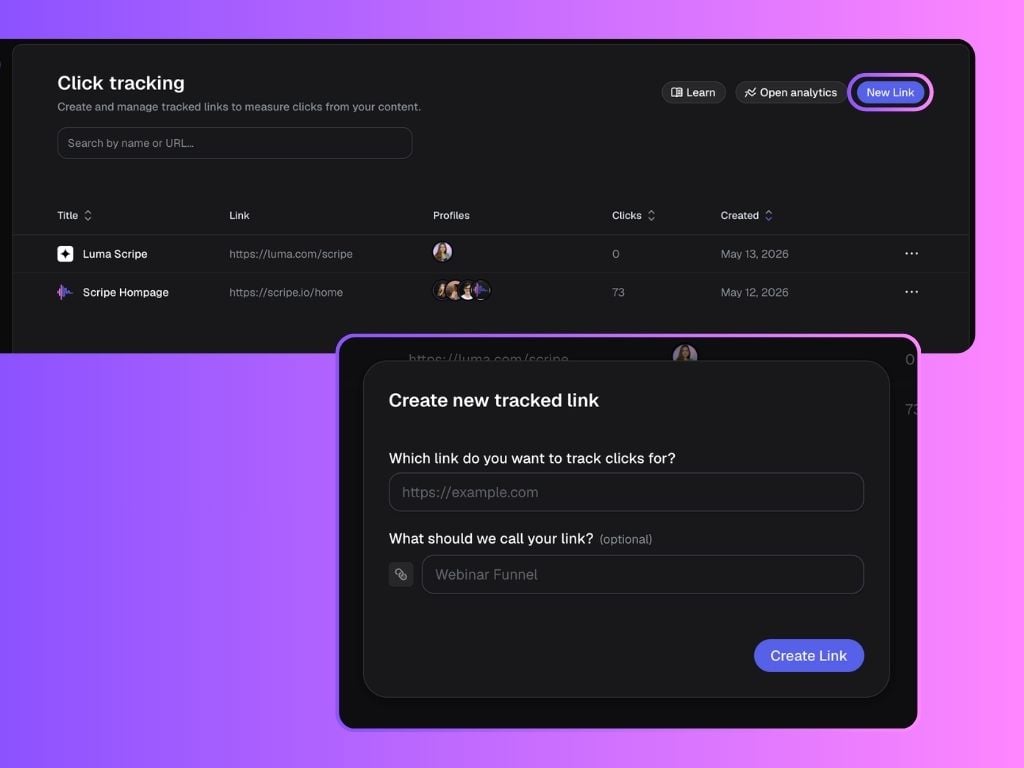
- Create placements
- Assign links to profiles
- Use links inside posts or comments
- Track performance in analytics
Understanding Placements
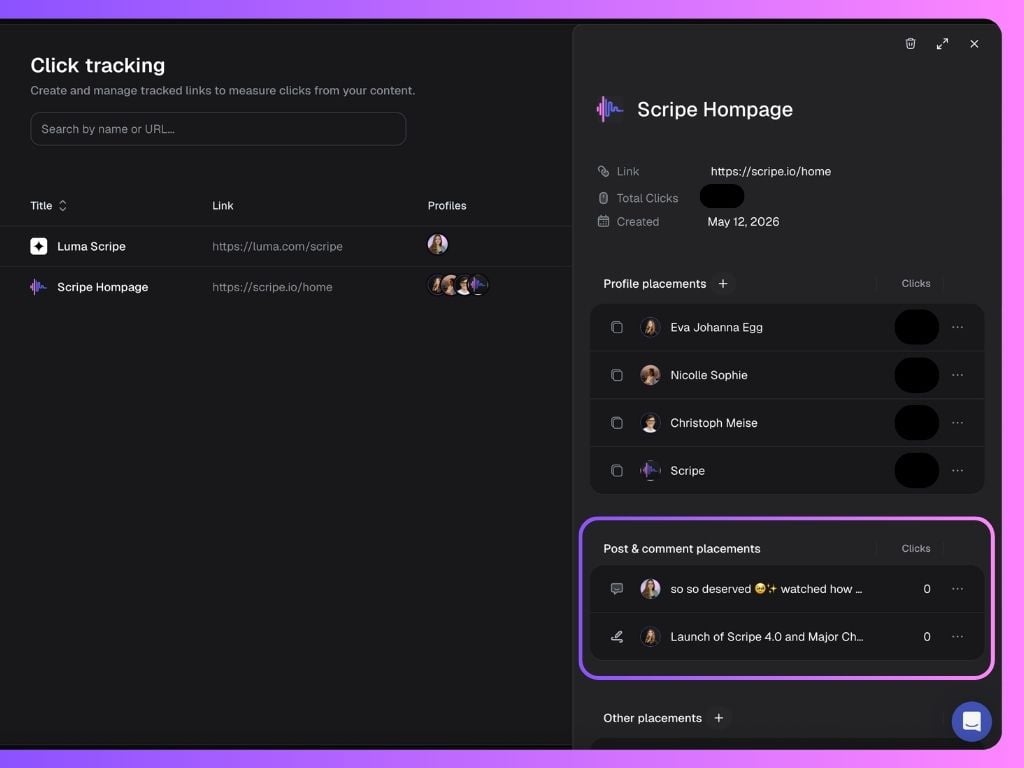
Placements help organize where your tracked links are being used. Scripe currently supports:Profile placements
You can use tracked links directly on your LinkedIn profile to measure profile-driven traffic. How to Set It Up:- Select your tracked link
- Add a Profile Placement
- Select the LinkedIn profiles you want to use the link on
- Copy the generated tracking link
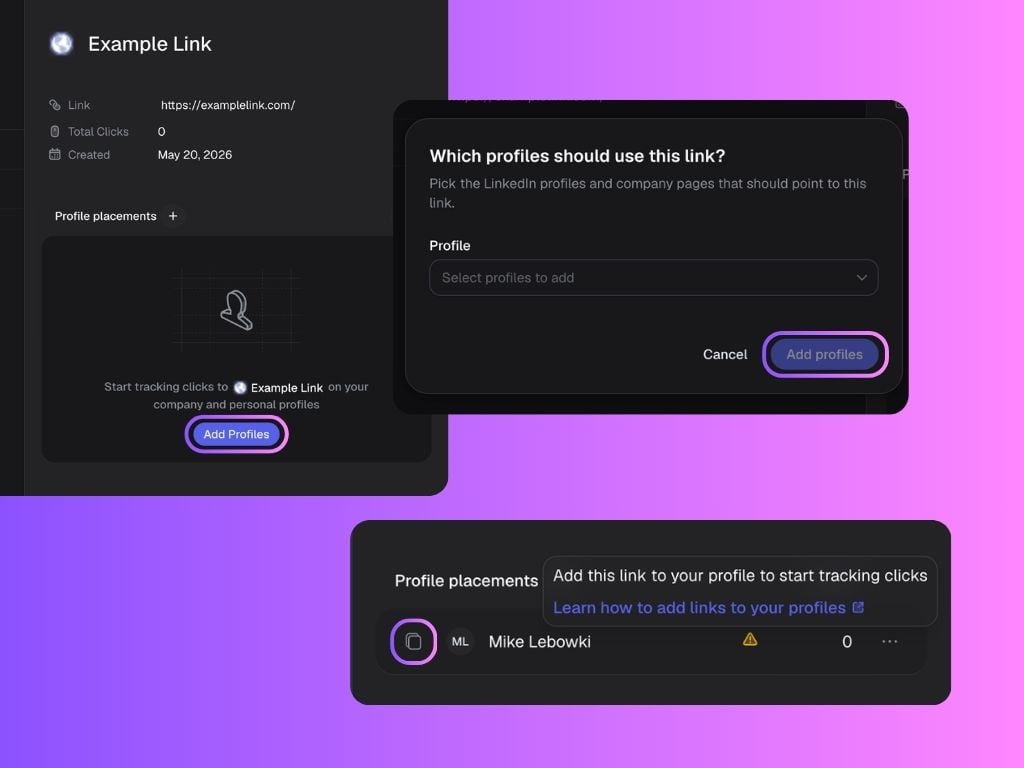
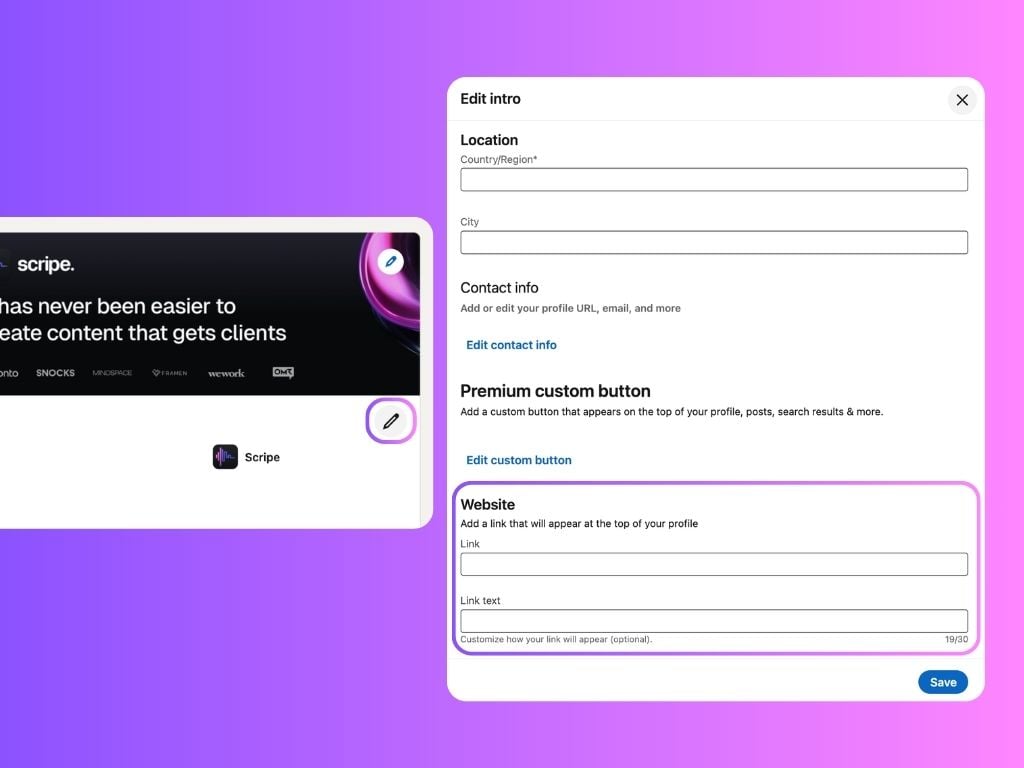
- Open LinkedIn and paste the link into your profile:
- Open LinkedIn and go to your profile.
- Click on Edit Profile.
- Scroll down to the Website section.
- Paste your Scripe-generated link into the Link field.
- Add a custom name under Link Text — for example: Try Scripe for Free!
Post & Comment placements
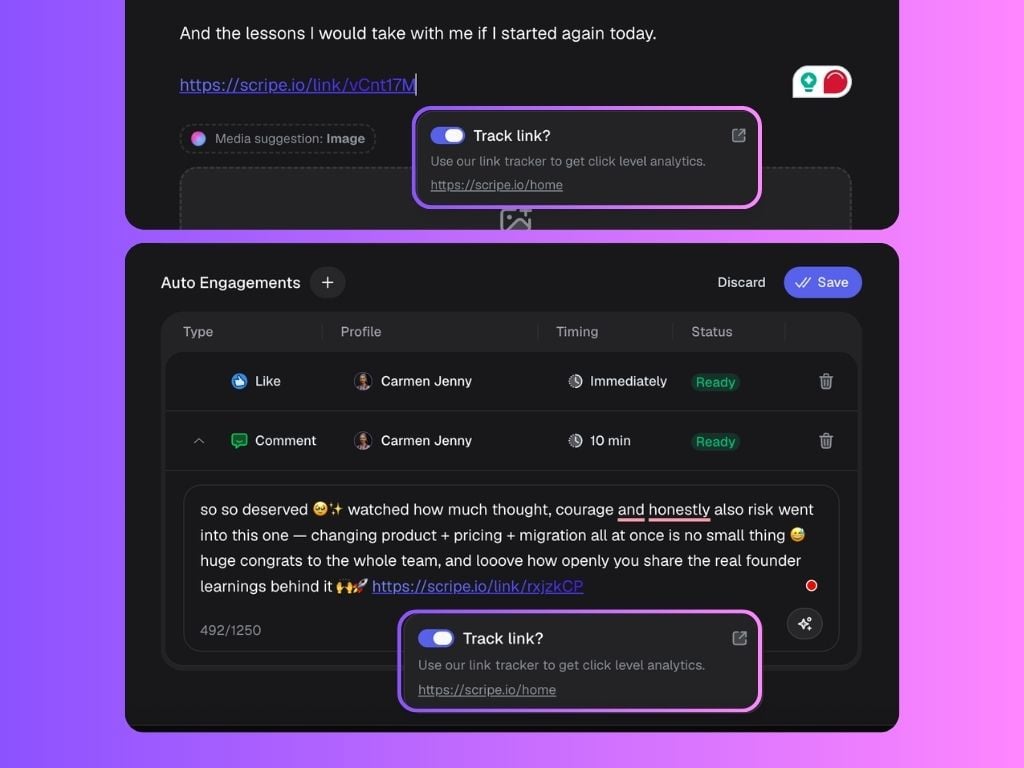
You can also add tracked links directly into your LinkedIn posts or comments inside the auto-engagement feature. How to Set It Up:- Paste your destination link in the post editor or comments
- Enable Link Tracking
- Scripe automatically converts the link into a tracked URL
Other placements
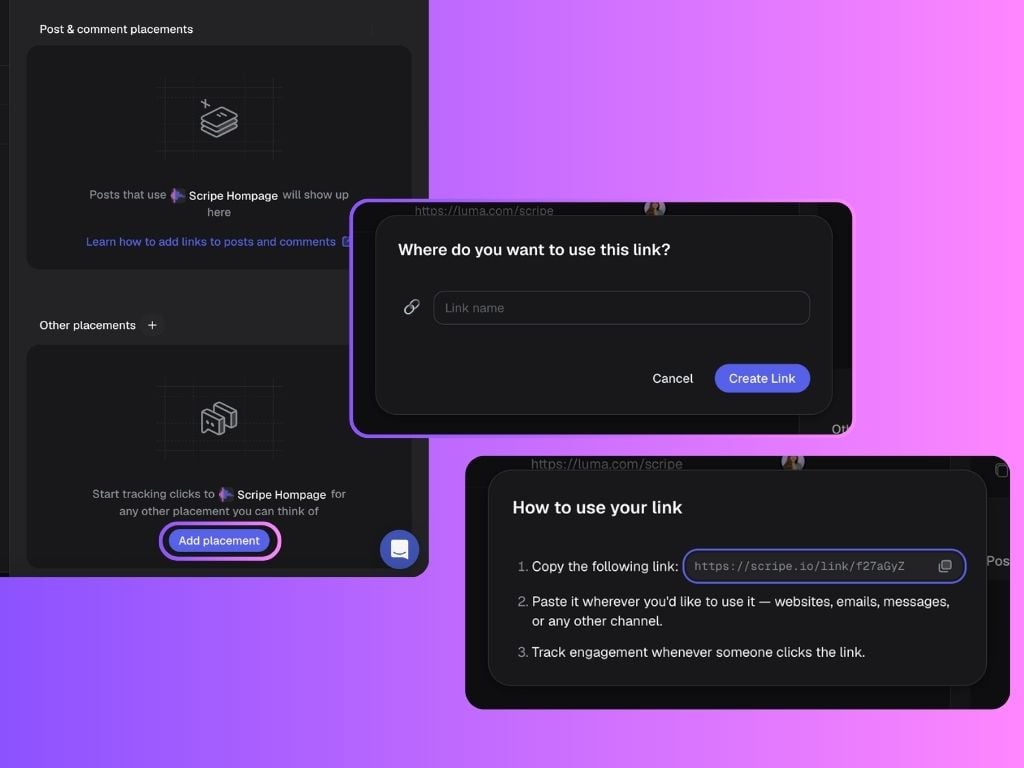
You can also create standalone tracked links for any use case outside of profiles or posts. Examples:- Webinars
- Landing pages
- Partner campaigns
- External social platforms
- Email campaigns
- Add a custom name
- Choose an emoji
- Copy and use the link anywhere
Why Click Tracking Matters
Click Tracking helps turn LinkedIn into a measurable growth channel. Instead of relying only on impressions or engagement, you can understand:- What content actually drives traffic
- Which profiles convert best
- How LinkedIn contributes to pipeline and revenue