Invite Members to your Workspace
If you’re on the Advanced or Business Plan, you can add multiple members to your organization.Assigning different Roles & Permissions is only available on the Business Plan.
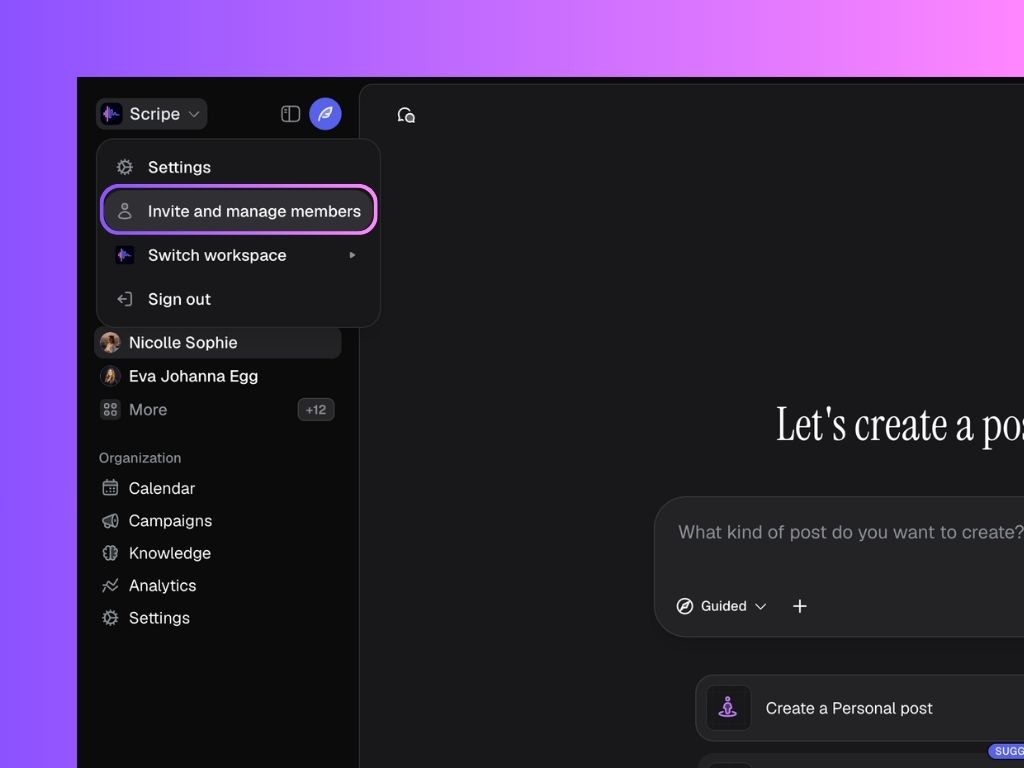
- In Scripe, click the name of your workspace in the top-right corner.
- Click Invite and Manage Members.
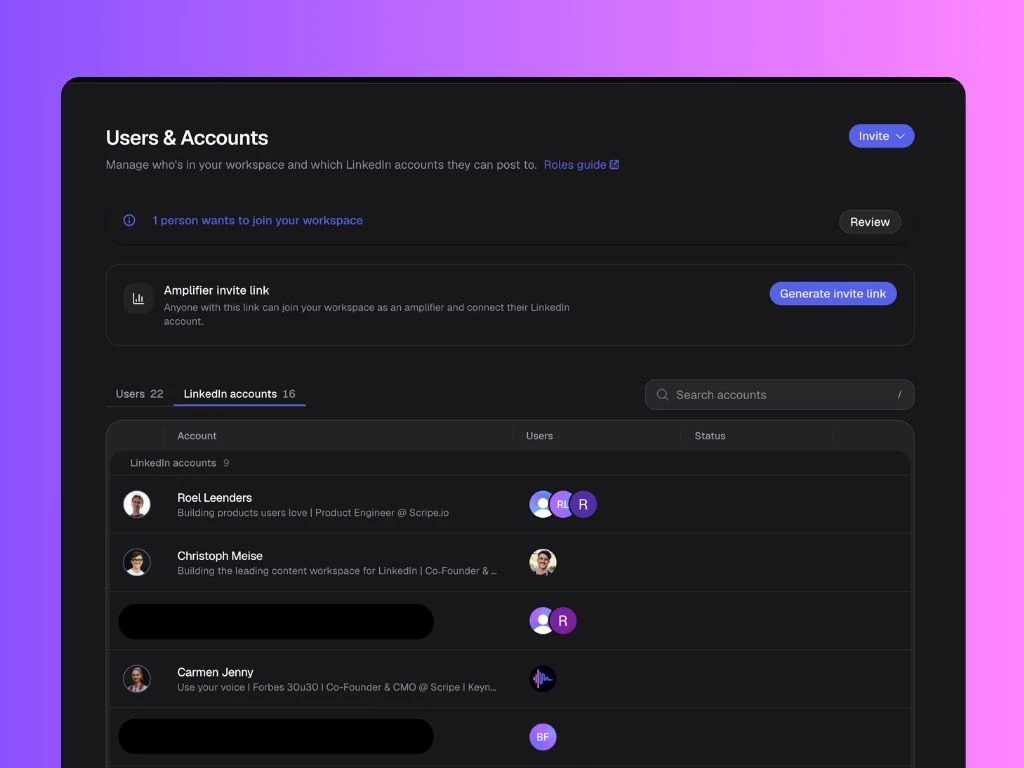
- On the Users & Accounts page, click Invite → Invite a teammate.
- Enter their email address, assign a Personal Brand (optional), and assign a role:
- Admin – Full access to everything.
- Manager – Manage members and accounts. No billing access.
- Creator – Can fully create and post on assigned accounts.
- Assistant – Supports with posts but can’t publish.
- Client – Read-only review of assigned posts + analytics.
- Send the invite.
Generate an Amplifier invite link
Anyone with this link can join your workspace as an amplifier and connect their LinkedIn account. Your billing is then automatically updated when they join the workspace.How to manage Users & Accounts in Scripe
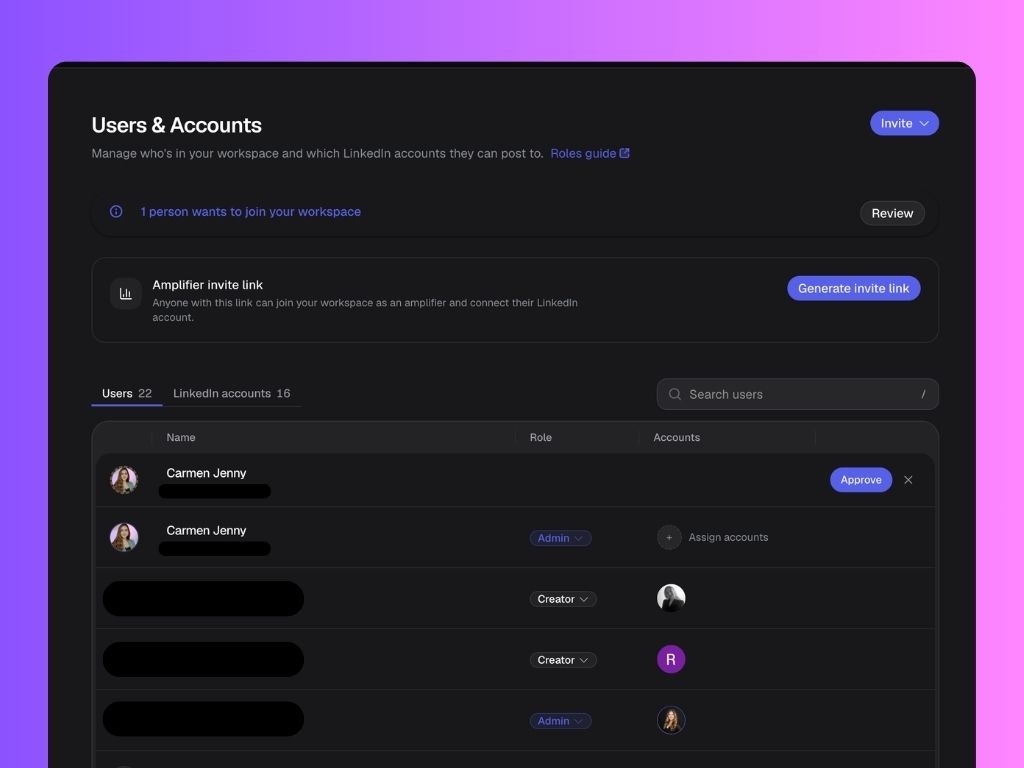
Navigate to the Users & Accounts tab in the Settings. Here you have two main tabs:Users
See the list of all members in your organization, their roles, and accounts assigned to them. Here you can:- Remove members if they no longer need access (via the three-dot menu)
- Assign the LinkedIn accounts that each user should have access to.
- Manage invitations and requests to join your workspace
- Change their roles:
- Admin – Full access to everything.
- Manager – Manage members and accounts. No billing access.
- Creator – Can fully create and post on assigned accounts.
- Assistant – Supports with posts but can’t publish.
- Client – Read-only review of assigned posts.
LinkedIn Accounts
See the list of LinkedIn accounts connected to your Scripe workspace, and all the users assigned to each of them. Here, you can assign multiple users to the same profile.