

The Content Interview feature helps you generate personalized LinkedIn posts by simply talking. Instead of typing your ideas, you speak freely while Scripe listens, transcribes, and turns your words into content drafts.Documentation Index
Fetch the complete documentation index at: https://docs.scripe.io/llms.txt
Use this file to discover all available pages before exploring further.
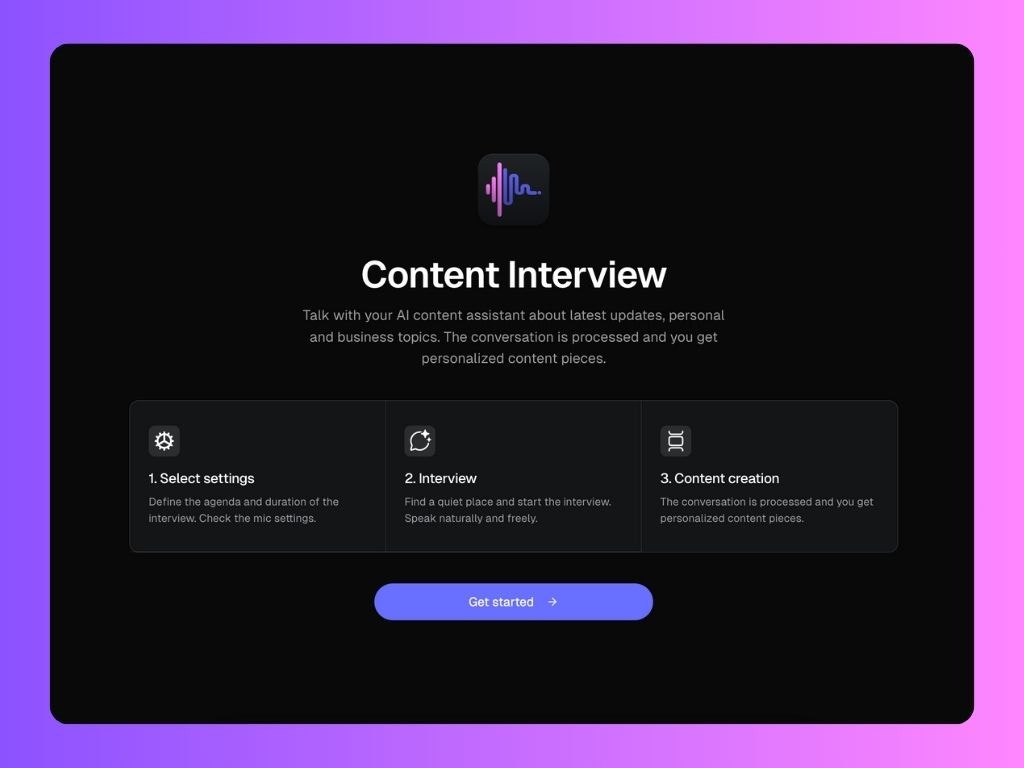
How it works:
- Click Create posts
- Select “Content Interview”
- Set up your interview
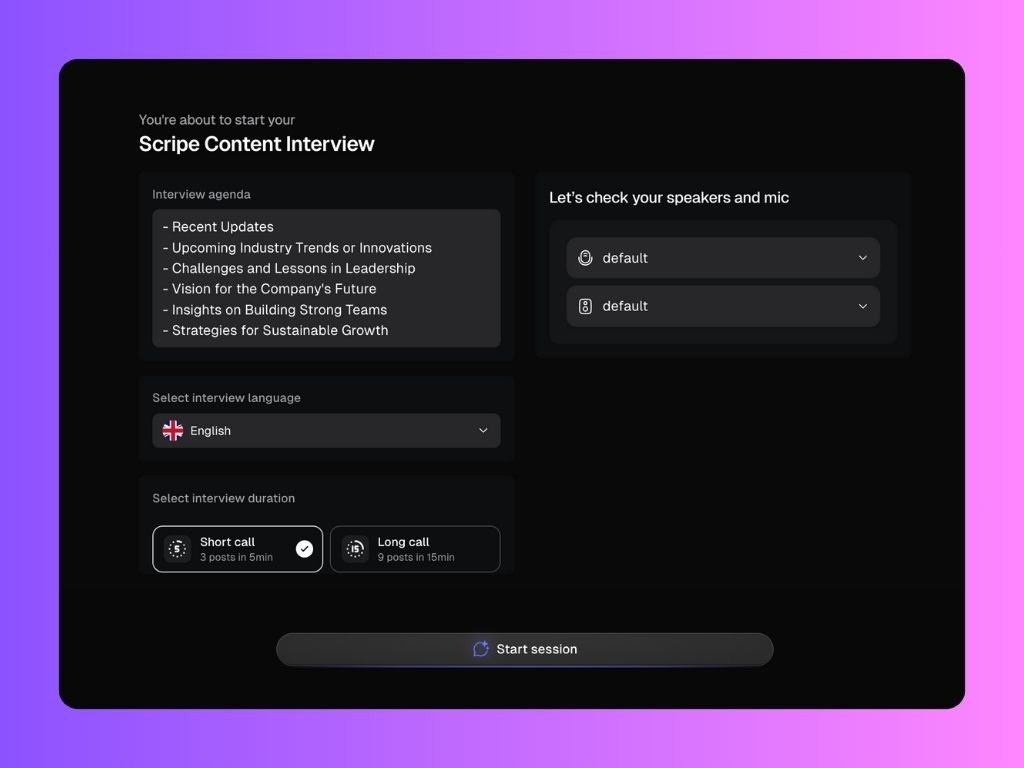
- Choose your agenda from a list of suggested topics (e.g., recent updates, team insights, future plans).
- Select your language and call duration:
- Short call: ~3 posts from 5 minutes
- Long call: ~9 posts from 15 minutes
- Make sure your mic and speakers are set up properly.
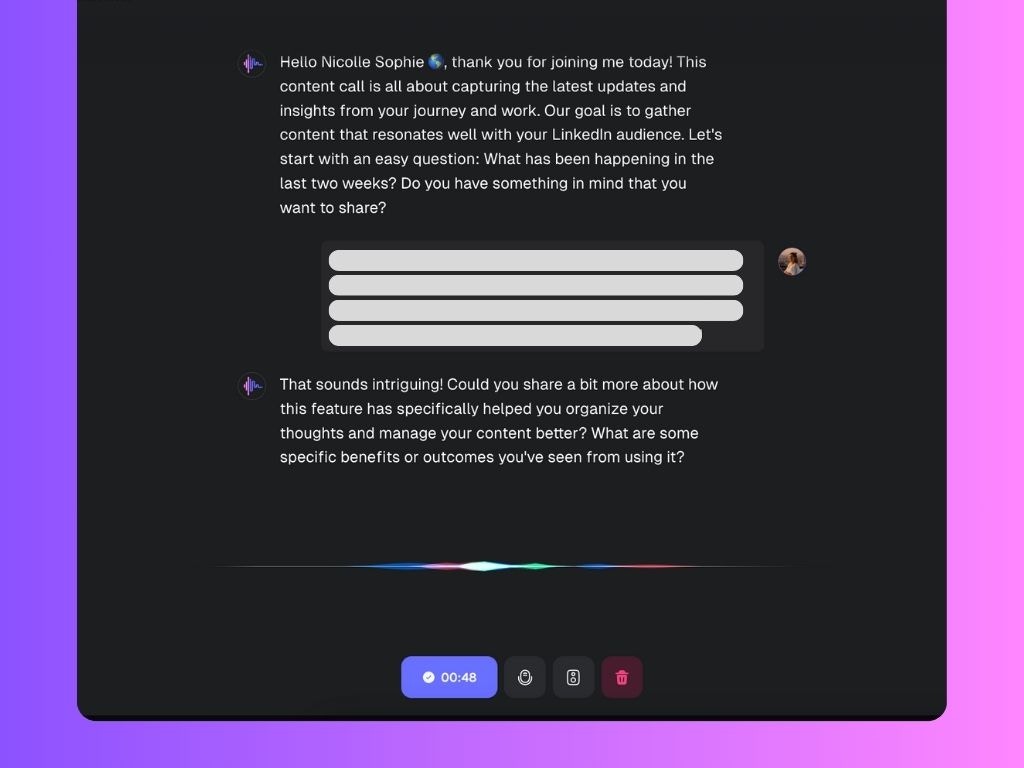
- Have the conversation: the Scripe AI interviewer will guide you through the questions. Speak naturally, there’s no need to prepare scripted answers.
- Get your posts: Once the call ends, your responses are processed and turned into multiple LinkedIn-ready drafts. You can review, edit, and publish them as needed.
After the Interview: Post Ideas & Scoring
Once Scripe processes your content interview, you’ll be taken to a screen that helps you generate and refine LinkedIn post ideas based on your content.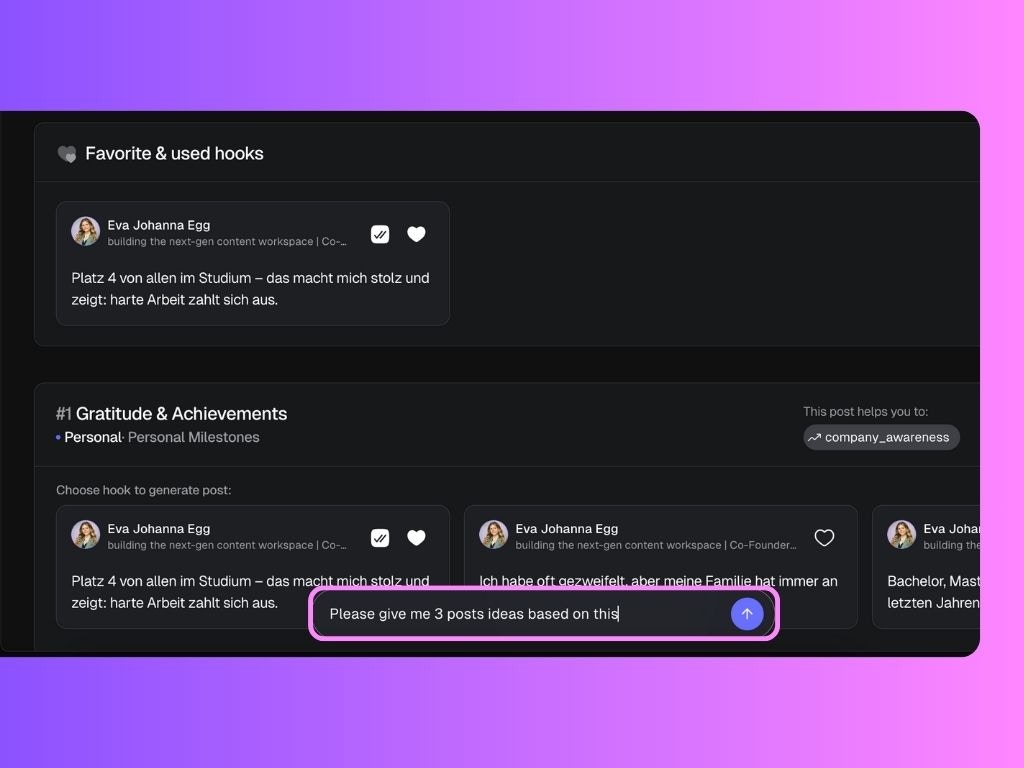
What You’ll See
- Post Ideas: Scripe generates multiple post drafts based on the file you uploaded (e.g., audio, video, PDF, etc.).
- Post Score: Each post idea is ranked using a content score, which evaluates how well the post aligns with key performance factors such as Goal alignment, Engagement potential and Value and insights.
- Strategy Tags: Scripe highlights the strategic intent behind each post, such as: generating leads, attracting partners, educating your audience, building credibility, etc.
- Hooks: Each post suggestion comes with scroll-stopping hooks. You can:
- Click on the arrows to preview all the different hook variations
- Favorite the ones you like most
- Use any hook to instantly create a full post
Need to revisit this page later? You’ll find them saved under the Sources tab in the left sidebar.